


TL;DR (Quick summary): While the Amazfit Bip 6 lacks a native Spotify app, the third-party Remotify solution brings significantly improved music control, including playlist browsing and track interaction from your wrist. It’s not a full standalone experience, but with premium features enabled, it delivers a surprisingly capable workaround for most Spotify users on Zepp OS.
For years, the most requested feature from the Amazfit and Zepp OS community has been a native Spotify app. While competitors like the Apple Watch and Galaxy Watch enjoy official support, Amazfit users have traditionally been left with basic “Music Control” that only works if the music is already playing on the phone.
However, after testing the latest updates in the Zepp App Store, there is finally a way to get a more integrated experience. By using a specialized companion app called Remotify, you can bridge the gap between your Amazfit Bip 6 (or other Zepp OS devices) and your Spotify account.
In this guide, I’ll walk you through the full setup process, explain the technical requirements, and help you decide if the premium features are worth your time.
Why Isn’t There an Official Spotify App for Amazfit?
To understand why we need a workaround, we have to look at how Zepp OS operates. Unlike WearOS (Google) or watchOS (Apple), Zepp OS is designed for extreme battery efficiency. Official apps like Spotify require significant background data and processing power to sync offline playlists and manage encryption.
As of early 2026, Spotify has not released a standalone “lite” version for Zepp OS. This is where third-party developers come in. They create “bridge” apps that allow the watch to communicate directly with the Spotify API on your smartphone, giving you control over your library right from your wrist.
Supported Devices: Is Your Watch Compatible?
Before we begin the installation, it is important to check if your hardware supports the Remotify bridge. This method is specifically designed for watches running Zepp OS 2.0 and above. Based on my testing and the current app store availability, the following models, including Amazfit Bip 6, are fully supported:
• Amazfit Bip 6 & Bip 5 Series
• Amazfit Active & Active Edge
• Amazfit Balance (supports the latest Zepp OS 3.5/4.0 features)
• Amazfit T-Rex Ultra & T-Rex 3 Series
• Amazfit Cheetah Series
• Amazfit GTR 4 & GTS 4
If you are using an older device like the Bip U or GTR 2, the Zepp App Store will not show the Remotify app because the older hardware cannot handle the API requests.
Step 1: Installing the Remotify App on Your Watch
The first half of the setup happens within the Zepp ecosystem.
- Open the Zepp app on your smartphone.
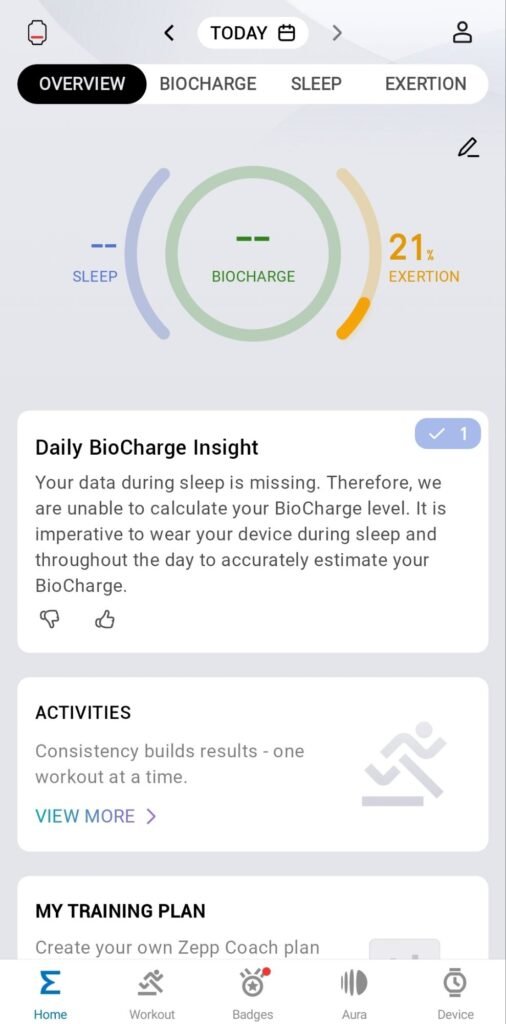
2. Navigate to the Profile tab and select your connected device (e.g., Amazfit Bip 6).
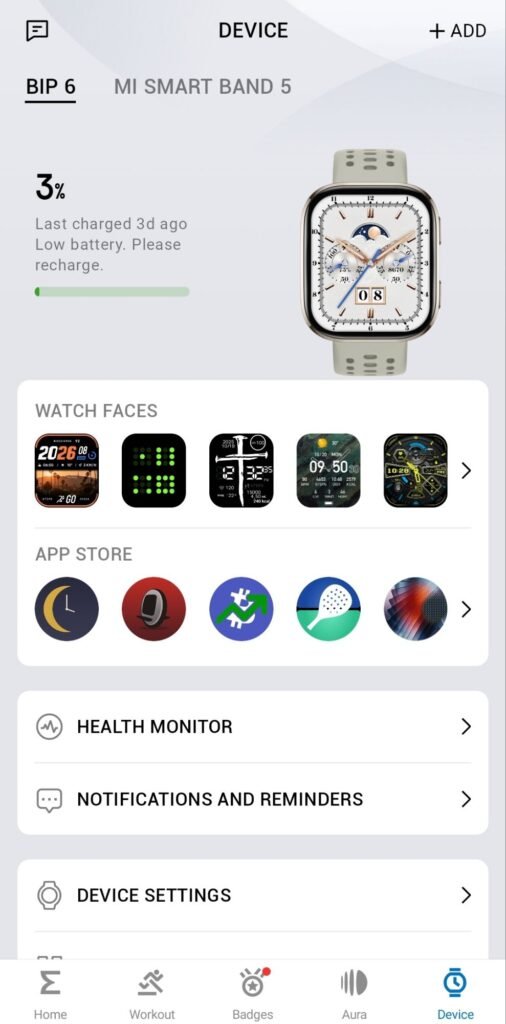
3. Scroll down to the App Store section.
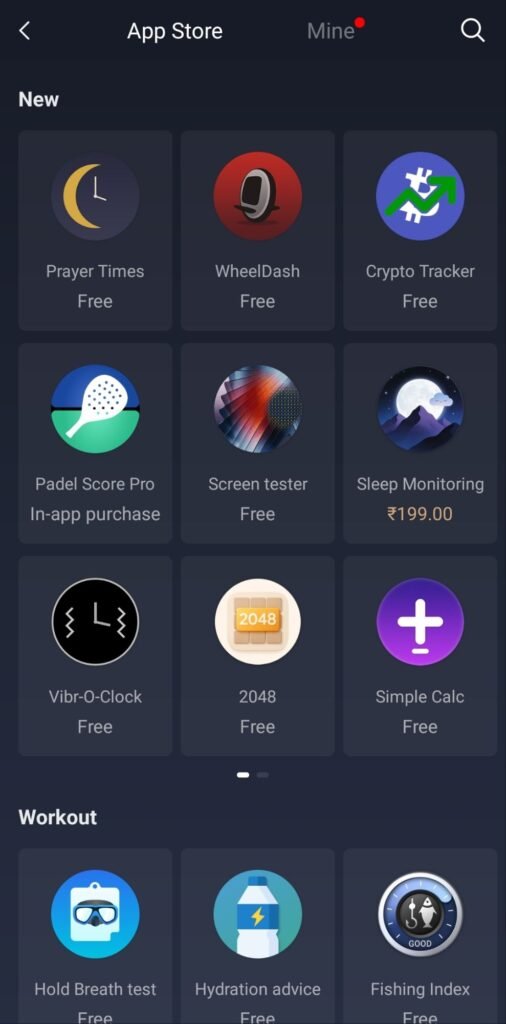
4. Use the search bar to look for “Remotify”.
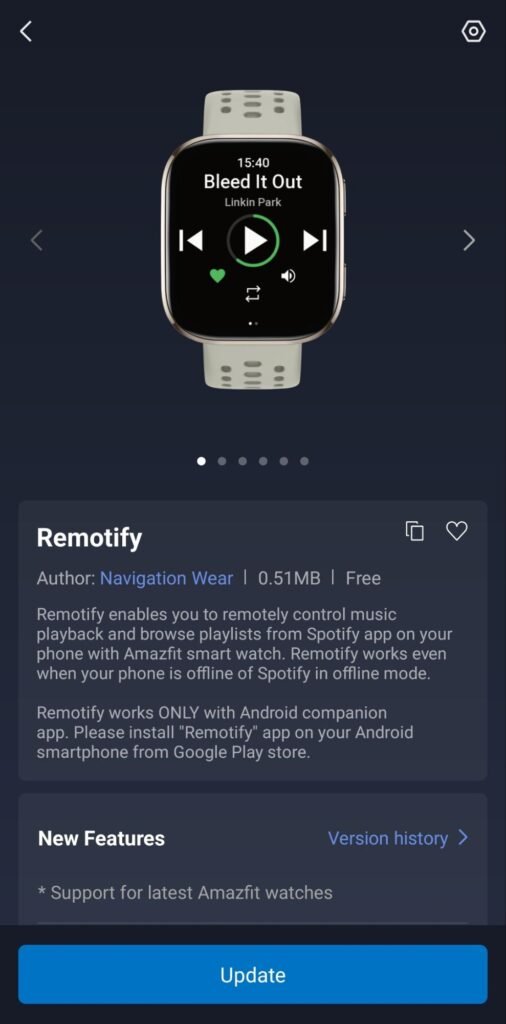
5. Click Install. Within a few seconds, the app will synchronize and appear in the menu list of your smartwatch.
Step 2: Setting Up the Smartphone Companion App
Unlike simple watch faces, Remotify requires a “handshake” between your phone and your watch. This means you need to install a companion app on your Android or iOS device to act as the middleman.
- Go to the Google Play Store (or Apple App Store).
- Download the Remotify app.
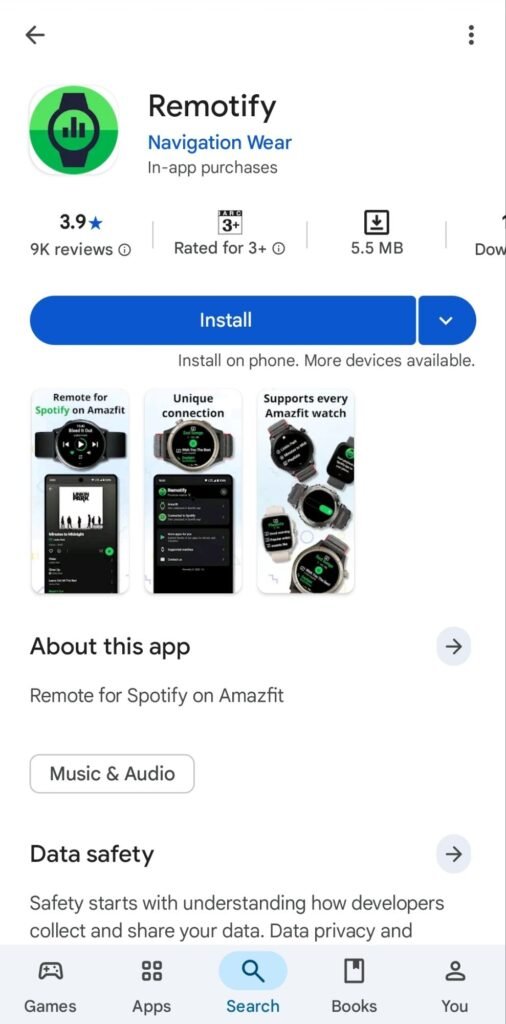
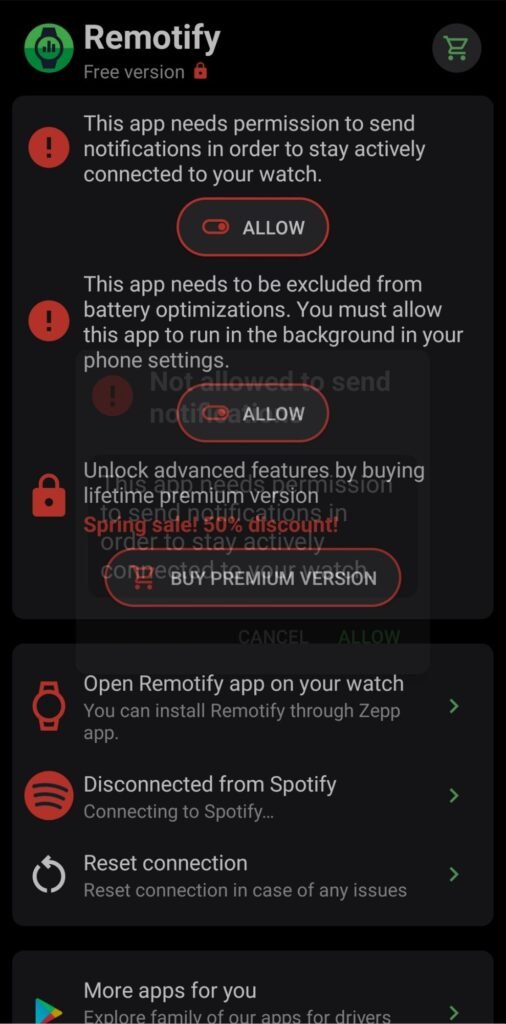
3. Critical step: Upon opening the app, you will be asked for several permissions. You must grant notification access and battery optimization (set to “Don’t optimize”). If you don’t do this, Android will kill the app in the background, and your watch will lose connection to Spotify.
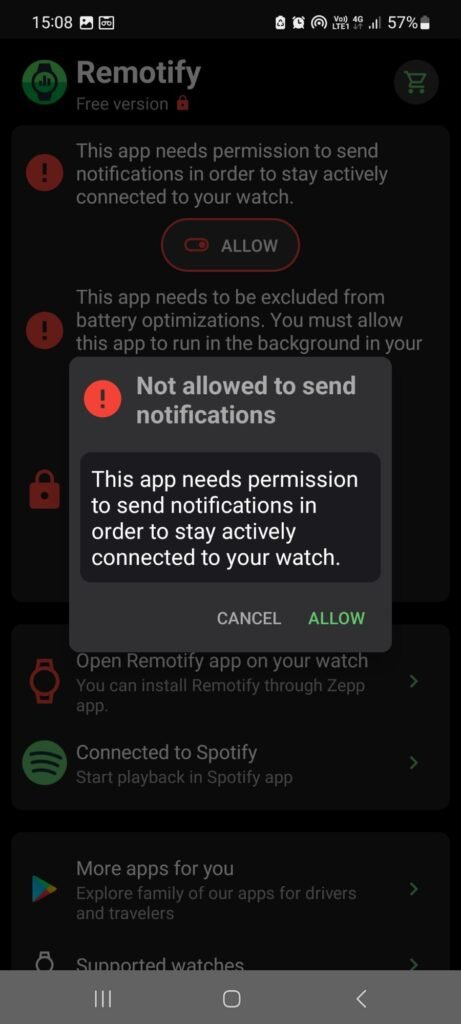
4. Once the permissions are set, tap on “Connect to Spotify.” This will redirect you to the official Spotify login page. Log in and authorize Remotify to access your “currently playing” data and library.
Step 3: Operating Spotify from Your Wrist
Now that the bridge is built, let’s look at how to actually use it. On your Amazfit Bip 6, press the physical side button to open your app list and select Remotify.
The Interface
Once opened, you’ll notice the interface is much deeper than the standard Amazfit music controller. You will see:
• Current track info: The song title and artist currently active on your phone
• Playback controls: Play, pause, next, and previous
• Volume control: A dedicated slider to adjust volume without touching your phone
• The “like” button: A heart icon that allows you to add the current song to your “Liked Songs” library instantly
Navigating Playlists
One of the standout features of this method is the ability to browse. By scrolling down, you can access:
• Your playlists: A list of your custom-created Spotify playlists
• Trending & radio: Popular tracks and artist-specific radio stations
• Recently played: A quick way to jump back into a podcast or album you were listening to earlier
The “Premium” Factor: Is It Worth the Cost?
As mentioned in my video walkthrough, Remotify follows a “freemium” model.
The Free Version
The free version allows you to see what is playing and perform basic skips. It is essentially a slightly more stable version of the built-in music control. However, it often limits how many items you can see in your playlists and may show an “Upgrade to Premium” prompt when trying to access specific radio stations.
The Premium Version
Unlocking the premium version (usually a small one-time fee) enables:
• Full library access: Browse every single song in every playlist
• Offline mode metadata: Better handling of track info when your connection is spotty
• Advanced controls: Shuffle and repeat toggles directly on the watch
Pro tip: If you are a heavy Spotify user who goes for long runs or workouts where your phone is in a pocket or armband, the premium upgrade is a must-have. The ability to switch from a “Workout Mix” to a “Chillout” playlist without stopping your run is the main reason to use this app.
Troubleshooting Common Issues
Since this is a third-party solution, you might encounter a few bugs. Here is how to fix them based on common user feedback:
“App disconnected” error
This is almost always caused by the phone’s power-saving mode. Go to your phone settings > Apps > Remotify > Battery > and select “Unrestricted.” Also, ensure the Zepp app is locked in your “Recent apps” tray.
“No active device found.”
Spotify requires an “active” session. Open the Spotify app on your phone and play any song for one second. Once Spotify is active in the Android notification shade, Remotify will be able to see it.
Slow playlist loading
Because the watch is pulling data via Bluetooth from the phone, which is pulling data from Spotify’s servers, there can be a 2–3 second delay. Be patient when clicking “Playlists”; it isn’t frozen, it’s just fetching data.
Impact on Battery Life
One concern users have is whether this will drain the Amazfit Bip 6’s battery life. In my testing, using Remotify for an hour-long gym session drains about 2–3% more battery than usual. This is because the Bluetooth connection is staying active to transmit metadata and album art. Compared to a WearOS watch that might lose 20% in the same timeframe, this is still incredibly efficient.
Final Thoughts: A New Era for Amazfit Users
The Amazfit Bip 6 and Active series are incredible pieces of hardware, often held back by software limitations. Using the Remotify bridge proves that the Zepp OS developer community is getting stronger.
While we all hope for an official Spotify app one day, this setup provides 90% of the functionality you need. You get the library access, the volume control, and the “like” button—all without having to take your phone out of your pocket.
If you followed the steps in my video and this guide, you should now have a fully functional Spotify controller on your wrist.
FAQ Section
Q: Does this work with Spotify free accounts?
A: Yes, but you will still have the standard Spotify free limitations (shuffling only, limited skips).
Q: Can I play music directly from the watch speaker?
A: No. Remotify is a controller. The music still plays from your phone or your Bluetooth earbuds connected to your phone. (Note: On watches like the Amazfit Balance, you can technically route phone audio to the watch speaker, but the quality is not ideal for music.)
Q: Is it safe to give Remotify my Spotify login?
A: Remotify uses the official Spotify API “OAuth” login. This means the app never actually sees your password; it only receives a token from Spotify to control playback.


Leave a comment